【Vibe Coding 教學】我用 Canva AI 做了一個「時光機」,根本不用寫程式!把你的回憶變成作品!
你知道 Canva 不只能做簡報,還能幫你「寫網站」嗎?這篇教你用 Canva AI 製作互動式 Y2K 時間軸網站,記錄追星、生活或旅行回憶,只要一句話就能自動生成、編輯與發佈,零程式碼也能完成!

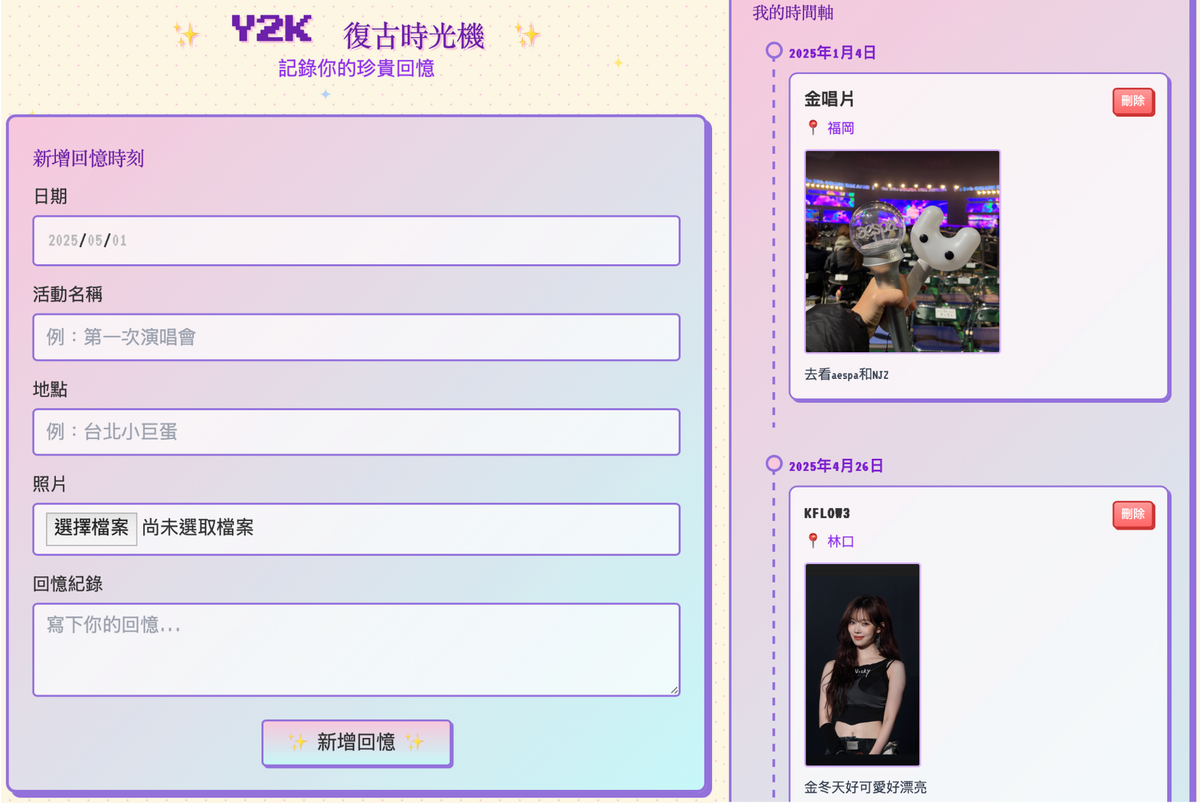
追星紀錄、旅行回憶、成長歷程、學習日誌……
這篇教你用 Canva AI,不用寫程式,也能做出能互動、可分享的「時光機網頁」!
- 前言:從簡報工具到互動網站——Canva AI 悄悄進化了!
- 一、Canva AI 製作互動式網站的操作步驟
- 二、範例展示|追星女孩的時間軸
- 三、結語|Vibe Coding = 技術平民化+美感升級
- 【Vibe Coding】I Created a “Time Machine” Website with Canva AI—No Coding Needed!
前言:從簡報工具到互動網站——Canva AI 悄悄進化了!
你可能早就用過 Canva 做報告、設計 IG 貼文,但你知道嗎?
這次我們就用一個很有共鳴的例子——追星紀錄,來示範如何做出一個 Y2K 復古風格的「互動式歷史時間軸」網站。但不只追星,這個方法也超適合記錄你的人生里程碑、日記整理、旅遊筆記或課外學習筆記!
一、Canva AI 製作互動式網站的操作步驟
Step 1. 開啟 Canva 的「Canva AI」
打開 Canva,畫面中央會出現對話框。

Step 2. 輸入這段 Prompt 指令
在 AI 對話框中輸入以下文字(你可依主題修改):
請幫我製作一個「Y2K 復古風格的互動式歷史時間軸元件」。使用者可以自行無限新增日期、上傳照片,並在每個時間點展開對應的資訊卡(包含活動名稱、地點與個人回憶紀錄)。整體風格請統一為復古懷舊風(淺色系),搭配一致的字體與排版設計。介面需直觀、簡潔、可用於粉絲個人收藏或公開展示。
Step 3. AI 自動幫你生成整個網站頁面!
你會看到 Canva AI 開始自動排版、寫出 HTML 架構(但你完全不需要懂程式碼),短短幾秒就會出現完整網站初稿。
這個時間軸會有互動卡片、圖片區塊、Y2K 風格的背景與標題,非常有視覺效果!
Step 4. 想修改?直接和 AI 對話就行!
如果你覺得不夠復古、想加更多功能(例如加上影片、變成兩欄排版、增加導航列),只要直接在 AI 對話框裡告訴它你的需求,它就會自動修改程式碼並更新畫面。
Step 5. 點「在設計中使用」後自由微調
當你滿意整體設計後,點選「✅ 在設計中使用」,你就會進入 Canva 熟悉的操作介面,可以自行加入裝飾圖、標題、GIF 動畫或背景音樂。
這裡你可以自由發揮美感,完全不需要寫程式!
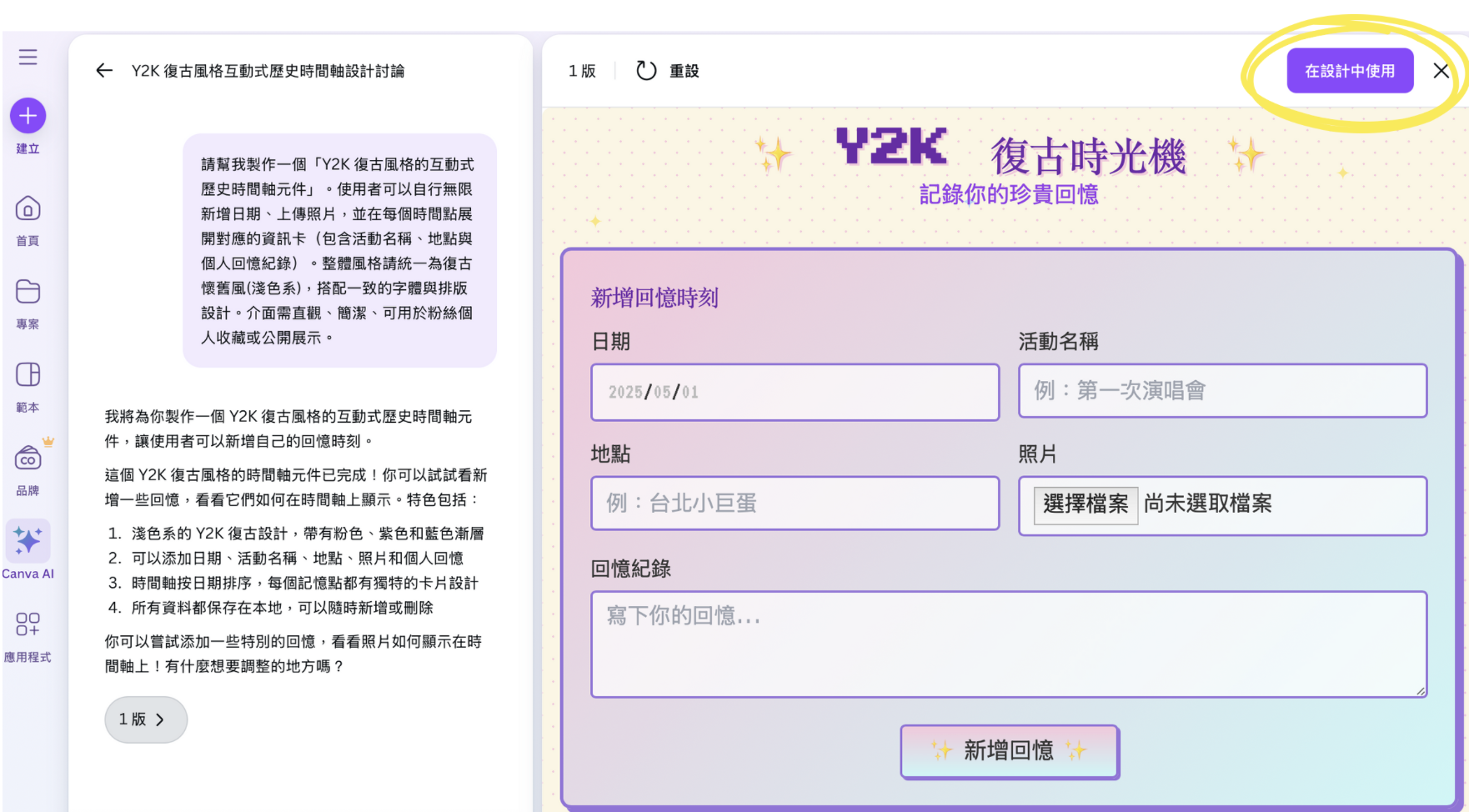
Step 6. 一鍵「發布網站」!網頁馬上上線
完成設計後,只要點選右上角的【發布網站】,Canva 就會幫你架設一個網址!
無論你是要記錄追星旅程、與朋友分享你的旅行記事,還是展示你學習成長的每一刻——這個網頁都是屬於你自己的時光機。

二、範例展示|追星女孩的時間軸
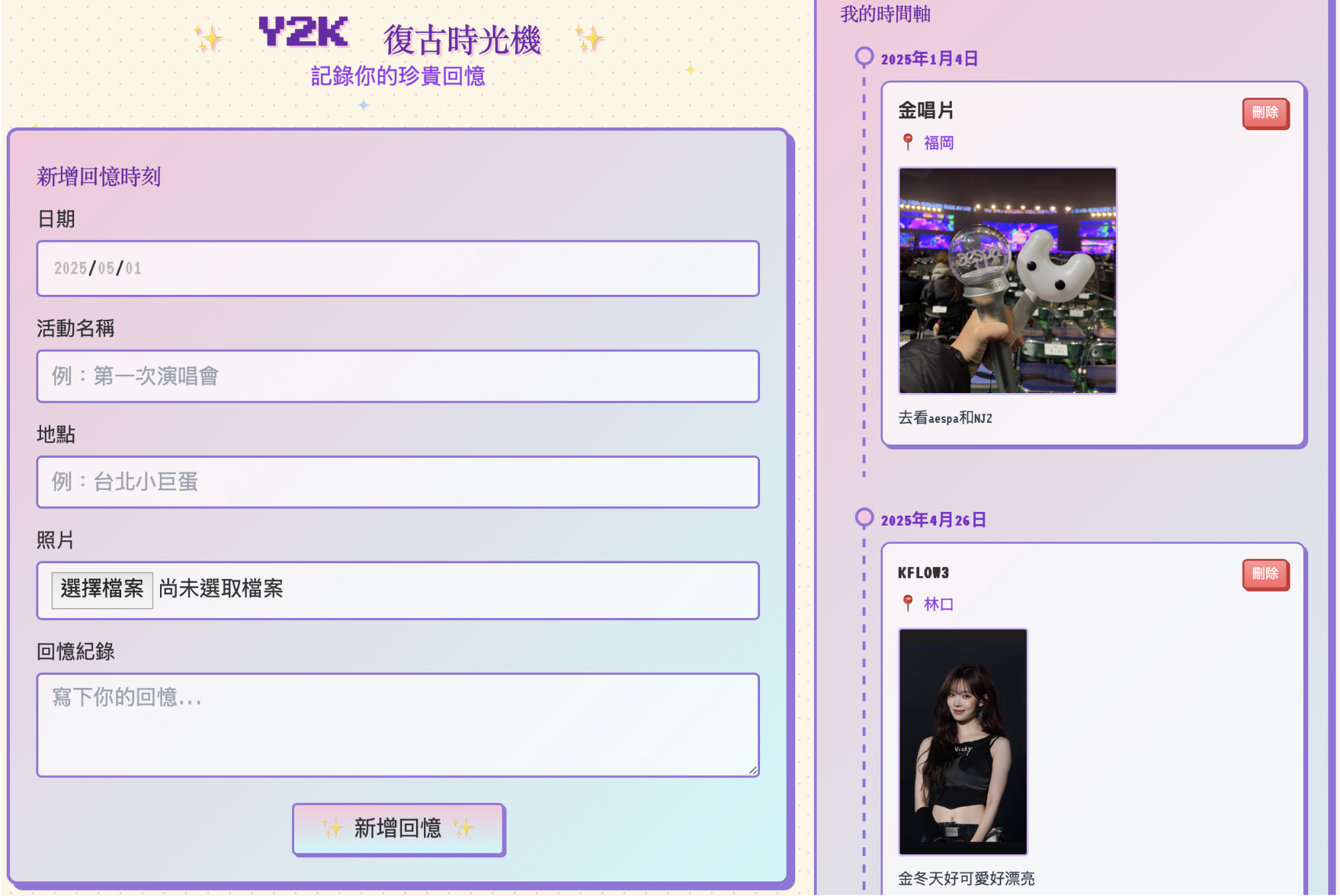
我自己用來紀錄的是我看過的演唱會與,每一個活動都有地點、回憶留言和照片,像是一場可視化的粉絲回憶展覽!
你也可以用來記錄:
- 旅遊回憶錄(每一站一個地點)
- 學習紀錄(期中報告、實作成果、心得卡片)
- 自傳年表(用來申請學校或作品集)
- 情侶紀念網站(紀念交往每個月日)
三、結語|Vibe Coding = 技術平民化+美感升級
Canva AI 正在重新定義「寫程式」這件事:你不需要寫一行 code,就能做出實用、能分享、有美感的互動網站。
這就是 Vibe Coding 的精神:用你最輕鬆、最有創造力的方式,把你的想法變成作品。
你不只能做互動式時間軸,我甚至還用 Canva AI 寫出了一個 To-Do Task 任務管理頁面!
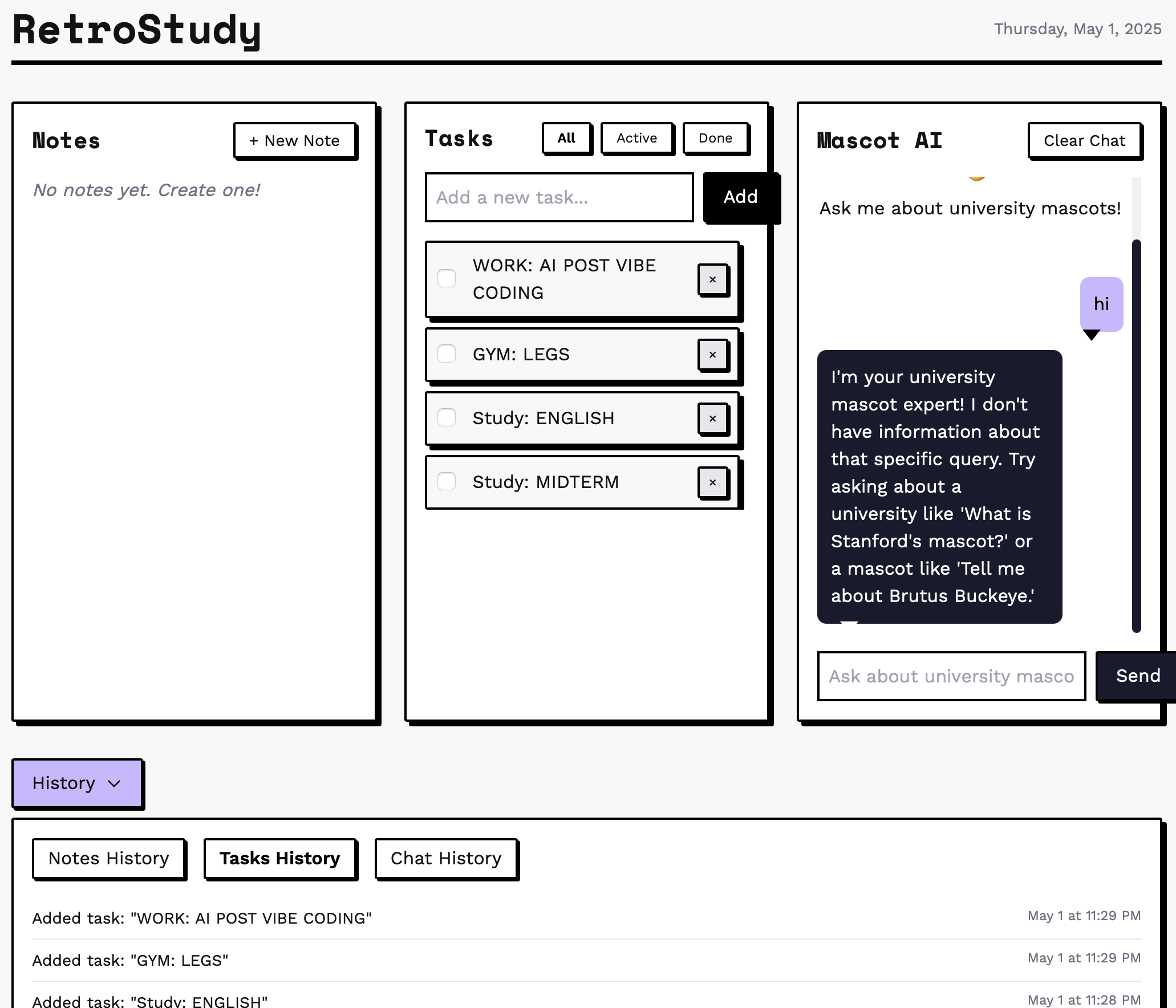
能做的網頁遠比你想的更多元——趕緊來將你的靈感變成活生生的網站吧!
【Vibe Coding】I Created a “Time Machine” Website with Canva AI—No Coding Needed!
Turn your memories into a website you can interact with, revisit, and share.
From fan moments to travel memories, life milestones to learning journals...
In this tutorial, you'll learn how to use Canva AI to build an interactive "Time Machine" webpage—without writing a single line of code.
Intro|From Slides to Sites—How Canva AI Quietly Evolved
You've probably used Canva for presentations or Instagram posts.
But did you know that Canva’s built-in AI tools can now design and publish full websites for you?
All it takes is one prompt, and Canva AI will handle the layout, design, and even interaction logic automatically.
In this tutorial, we’ll create a Y2K-themed interactive timeline to document your favorite concert memories.
Of course, this method works just as well for:
- Life milestones
- Study notes
- Travel journals
- Portfolio timelines
Part 1|How to Create an Interactive Website with Canva AI
Step 1. Launch Canva AI
Open Canva and choose the “Website” option. A chat box will appear in the center of the screen.
Step 2. Enter Your Prompt
In the AI chat box, input the following (feel free to modify based on your topic):
Create a vintage Y2K-style interactive timeline component. Users should be able to add unlimited dates, upload photos, and expand info cards that include event name, location, and personal notes. The overall design should follow a soft retro aesthetic with consistent fonts and layout. The interface should be intuitive, clean, and suitable for fan collections or public display.
Step 3. Let AI Generate the Webpage
Within seconds, Canva AI will auto-generate the page layout and content—no coding knowledge required.
The timeline includes:
- Expandable info cards
- Image slots
- Y2K-style background and typography
Step 4. Want to Make Changes? Just Keep Talking
Want to add videos? Switch to a two-column layout? Add a navbar?
Simply type your request in the chat, and Canva AI will update the design instantly.
Step 5. Click “Use in Design” and Customize Freely
Once you're happy with the layout, click “Use in design.”
You’ll enter the familiar Canva editor where you can:
- Add GIFs
- Edit titles
- Insert background music
- Adjust colors and layout
No coding needed. Just design.
Step 6. One-Click Publish—Your Website Is Live
Click “Publish website” at the top right, and Canva will generate a unique link.
Now you’ve got a fully functional website that captures your memories—ready to share.
Part 2|Example Showcase: A Fangirl’s Y2K Timeline
I used Canva AI to document my concert history—each event includes photos, notes, and location info.
The final result looks like a personal visual museum of fan memories.
You can repurpose this concept to create:
- Travel journals (one card per stop)
- Study logs (with summaries and reflections)
- A personal timeline (great for portfolios or applications)
- Couple milestone websites (monthly or yearly)
Part 3|Vibe Coding = Tech for Everyone + Design That Delivers
Canva AI is redefining what it means to “code a website.”
You no longer need technical skills to build something interactive, visual, and truly yours.
That’s the spirit of Vibe Coding:
Use creativity, not complexity, to bring your ideas to life.
In fact, I even used Canva AI to build a simple to-do list website—and it worked perfectly.
The types of websites you can build go far beyond what you imagine.
Now it’s your turn—turn your ideas into a living website.